
Introduction
In today’s cloud-first world, reliable backups are essential for server administrators. Whether you’re running a production environment or a personal project, integrating cloud storage like Google Drive, OneDrive, or Dropbox into your Ubuntu server ensures your data is safe, accessible, and easy to restore. This guide walks you through setting up cloud-based backups on a server with SSH-only access.
Why Cloud Backups?
- Redundancy: Protects against local disk failures.
- Accessibility: Retrieve files from anywhere.
- Scalability: Cloud storage grows with your needs.
- Automation: Scheduled syncs reduce manual effort.
Step 1: Install rclone
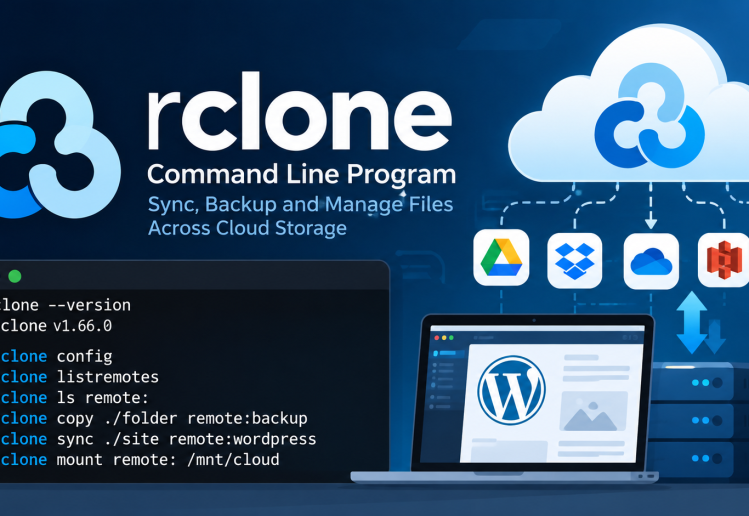
rclone is the most versatile tool for Linux servers with SSH-only access. It supports Google Drive, OneDrive, Dropbox, and many other providers.
curl https://rclone.org/install.sh | sudo bash
Step 2: Configure Your Remote
Run:
rclone config
- Choose new remote.
- Select your provider (Google Drive, OneDrive, Dropbox).
- Use headless mode for SSH-only servers. Copy the URL, authenticate on your local machine, and paste the token back into the server session.
Step 3: Sync Backups
Instead of mounting (which requires FUSE), use rclone sync for reliable backups.
# Upload backups to Google Drive
rclone sync /path/to/local/backup gdrive:/server-backups --progress
# Restore from cloud
rclone sync gdrive:/server-backups /path/to/local/restore --progress
Step 4: Automate with Cron
Schedule daily backups:
crontab -e
Add:
0 2 * * * rclone sync /path/to/local/backup gdrive:/server-backups --log-file /var/log/rclone.log
Best Practices
- Encryption: Use
rclone cryptfor sensitive data. - Logging: Always log sync jobs for troubleshooting.
- Testing: Run with
--dry-runbefore production. - Bandwidth Control: Use
--bwlimitto avoid network saturation.
Conclusion
By combining rclone with cron jobs, you can create a robust, automated backup system that integrates seamlessly with cloud storage providers. This approach is lightweight, secure, and perfect for SSH-only servers.
